How to Create an Email Gated Download via a Breakdance Form
Summary
Connect your email-gated form to an API by adding your API key or webhook URL inside your form’s integration settings. Map name and email fields, then test the form. When done right, new leads automatically flow into your email list or CRM within seconds — no manual uploads.
Need to add an email gated lead magnet? Use this when you want a Breakdance form submission to trigger a file download immediately (with a backup delivery method), without adding extra plugins.
How it works
- User submits a Breakdance (lead magnet) form
- Breakdance processes the submission normally (email/CRM/etc.)
- A download starts automatically
- User sees success message
- Optional pop up with a backup download link
Create your email gated form and lead magnet downloader
1) Upload the lead magnet file
- Upload the PDF to Media Library (recommended)
- Copy the file URL (this becomes your link.href)
2) Build your Breakdance form
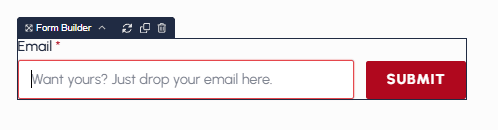
- Add your fields
- Enable any actions you want
- Email (backup delivery)
- Popup on Success (backup manual download link and a confirmation message)
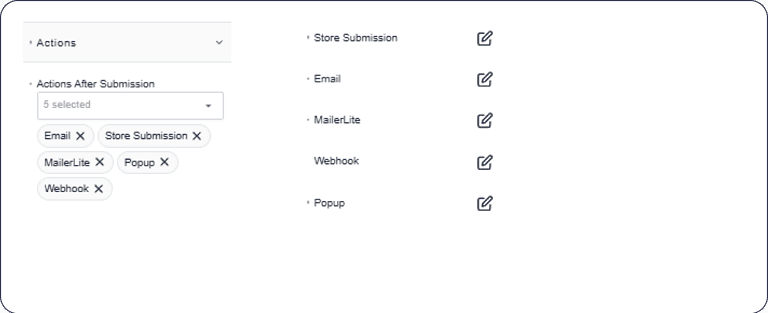
Built-in JS: Leave this empty
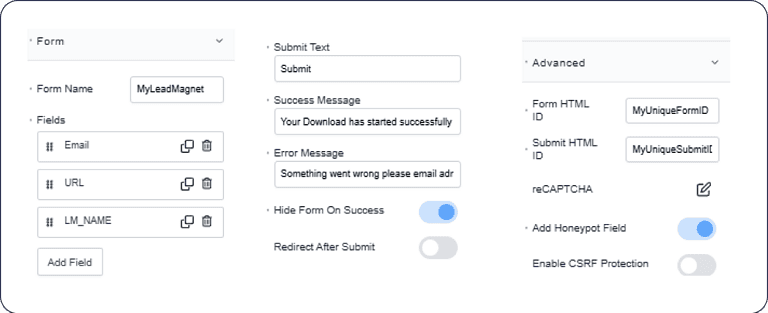
3) Set stable IDs on the form
In the form’s advanced settings:
- Form HTML ID: e.g. MyDownload
- (Optional) Submit button HTML ID if you’re doing extra UI control later
4) Add the download script (Code Block)
- Drop a Code Block near the form (above or below is fine)
- Paste the script and customise as needed
<script>
document.addEventListener("DOMContentLoaded", function () {

  // Match this to your Form HTML ID
  const form = document.getElementById("MyDownload");

  if (!form) {
    console.error("Form not found - check Form HTML ID");
    return;
  }

  form.addEventListener("submit", function (event) {
    event.preventDefault();

    // Let Breakdance process the form submission first
    setTimeout(() => {

      // Hide the form
      form.style.display = "none";

      // Show success message
      let successMsg = document.createElement("div");
      successMsg.id = "formSuccess";
      successMsg.innerHTML = "✅ <strong>Thanks!</strong> Your download is starting...";
      successMsg.style.cssText = "padding: 20px; background: #4CAF50; color: white; border-radius: 8px; text-align: center; font-size: 18px; margin-top: 20px;";
      form.parentNode.appendChild(successMsg);

      // Trigger the download
      const link = document.createElement("a");
      link.href = "/wp-content/uploads/2025/08/original-file-name.pdf"; // ← Your file path
      link.download = "BusinessName-File.pdf"; // ← User's download filename
      document.body.appendChild(link);
      link.click();
      document.body.removeChild(link);

    }, 800); // 800ms delay lets Breakdance process the form first
  });
});
</script>
Customisation needed
| Line | What It Does | How to Customize |
| getElementById(“MyDownload”) | Targets your form | Change “MyDownload” to match your Form HTML ID |
| link.href = “…” | Path to your file | Upload file to Media Library, copy URL, paste here |
| link.download = “…” | Filename users see | Choose a clear, descriptive name like “Your-Business-Guide.pdf” |
| setTimeout(…, 800) | Delay before download | Increase if form processes slowly (try 1200ms) |
5) Provide a fallback path (don’t rely on auto-download alone)
Auto-download can be blocked on some devices/browsers, so always include at least one of:
- Popup on Success with a manual download button/link
- Email delivery (or both)
6) Test it out.
- Test in incognito
- Test on mobile Safari + Chrome
- Confirm:
- submission succeeds
- success message appears
- download triggers (or fallback link works)
- the file URL opens directly in a browser
Need More Detail or Advanced Customisations?
This article covers basics, but If you need deeper guidance on:
- Troubleshooting common Breakdance form or download issues
- Multiple downloads on one page
- Best practices for reliability, UX, and delivery
- Optional Google Analytics / GA4 tracking for file downloads
👉 View the full implementation and advanced examples on GitHub:

How Long will this take?
30 minutes for most users 🔧 Skill Level: Intermediate (comfortable with website admin dashboard + following visual steps)