

I Thought I Didn’t Come From a Business Family. I Was Wrong.
I thought I didn’t come from a business family. Turns…


Ever uploaded a beautiful photo to your website and thought, “This’ll turn heads” only to realise it’s nowhere to be found on Google? You’re not alone.
Whether you’re a Brisbane-based café owner showing off your brunch menu, a Ballarat tradie sharing before-and-after reno shots, or a boutique store updating product pages, images are a powerful way to get noticed online. But if Google can’t “see” your images properly, you’re missing out on traffic and leads.
The good news? With a few tweaks, you can boost your image visibility and help them appear in Google search and image results.
Google doesn’t see images the way we do. It relies on clues, file names, image size, page content, and behind-the-scenes data, to understand what an image is and when to show it.
So, if your images are named “IMG_1234.jpg” and don’t have alt text or are buried in a slow-loading page, they’re flying under Google’s radar.
Google “crawls” your website with bots that read your text, code, and image data. When it finds an image, it checks:
If all of that lines up and your site is indexed, the image can appear in Google Search or Google Images.
These are the low-hanging fruit of image optimisation:
Instead of “IMG_20230501.jpg”, use “ballarat-bathroom-renovation.jpg”. This helps Google understand what the image is about.
If you didn’t rename the file before you uploaded it you have two options. Either download the image, change the file name and reupload it or use a tool like Phoenix Media Rename to rename the image
Alt text serves both accessibility and SEO. It should describe what’s in the image while naturally including keywords (but no keyword stuffing).
Example:
Alt text for a Ballarat café latte shot:
“Flat white coffee served in blue ceramic cup at Paddington café”
WordPress Plugins with AI Alt Text Generation
Here’s some alt text tools (free, freemium/paid) that use AI to automatically generate alt text for images, either using file names, surrounding content, or direct image analysis (some with OpenAI or similar models):
Large image files slow down your site, which Google frowns upon. Use tools like TinyPNG or ImageOptim to shrink file sizes without losing quality.
WebP images load faster and are often smaller than JPEGs or PNGs. Most modern websites and CMS platforms support WebP now. LiteSpeed Cache when connected with Quic.Cloud will automatically handle this for you.
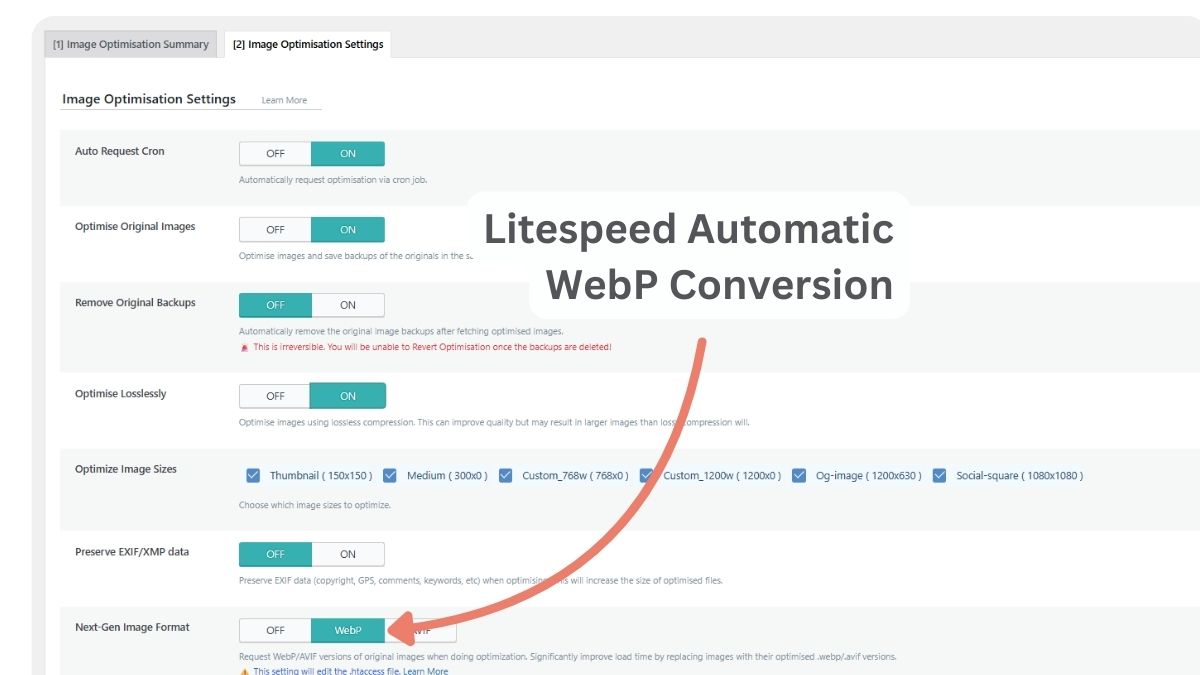
While this tip is mostly about page speed, it also helps with SEO, because a faster site means a better user experience, which Google values. We recommend resizing your images to the maximum size they’ll be displayed at on your website.
Option 1: Resize Before Uploading
Option 2: Resize Inside Breakdance
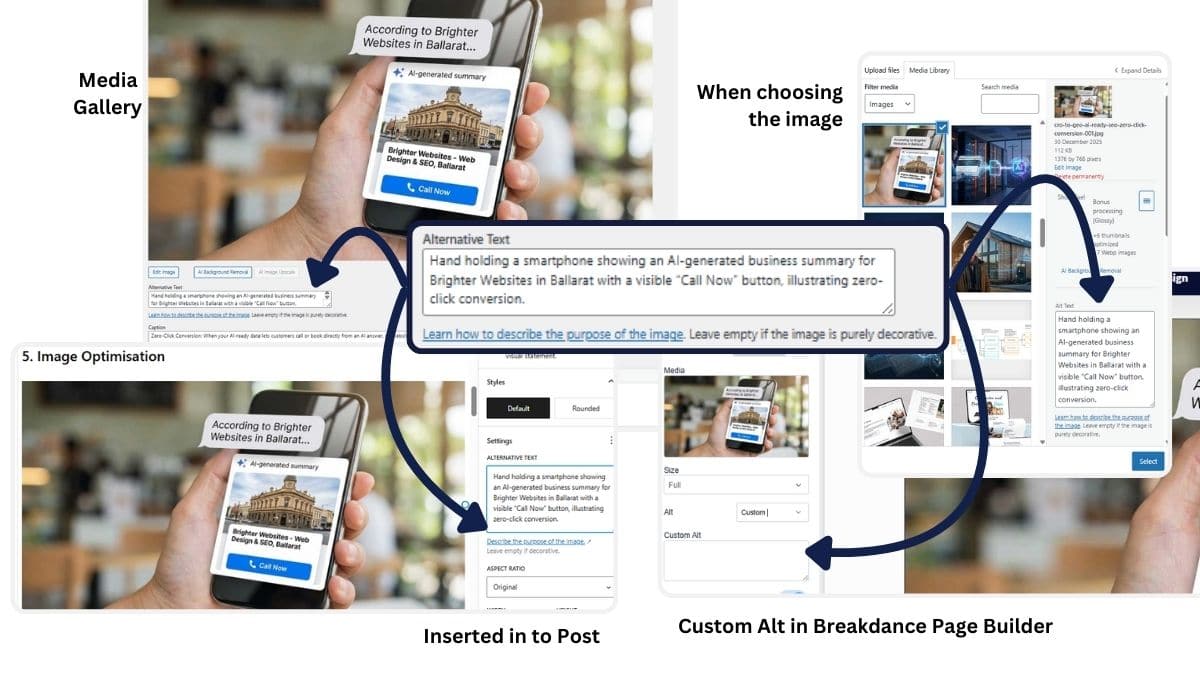
If you want to level up, add meta data like Geo Data to your image Meta and schema markup (structured data) to your image-rich pages. This helps Google know the image’s purpose, especially for product pages, recipes, events, and portfolios.
Tools like Google’s Rich Results Test can help you check if you’ve implemented schema correctly and we love Media Library Assistant to for editing and updated Image GEO Data in bulk, its a little tricky but possible to tag all your images from Ballarat to Brisbane.
Want to show up in local search and maps? These extra steps help:
Here are some things to avoid:
A few handy helpers:
If your business relies on visuals – whether it’s showcasing your work, your space, or your products image SEO should be part of your digital toolkit. It’s not complicated, just often overlooked.
Want help making sure your images (and your site) are set up to get found? Whether you’re in Brisbane, Ballarat, or beyond, we’d love to help.
Images play a significant role in enhancing website aesthetics and user engagement. However, without proper optimisation, images can hinder website performance and accessibility. Image Alt Text and overall image optimisation are essential components for improving search engine rankings and ensuring an inclusive user experience.
Image Alt Text is a brief, descriptive text assigned to an image on a webpage. It serves two primary purposes: aiding visually impaired users who rely on screen readers and helping search engines understand the context of the image. Properly implemented Alt Text contributes significantly to both accessibility and search engine optimisation (SEO).
Example: Instead of writing “Image of a product,” a better alt text would be “Eco-friendly reusable water bottle with bamboo lid.”
Beyond alt text, optimising the images themselves is crucial for website performance. Poorly optimised images can slow down your site, leading to higher bounce rates and lower search rankings.
srcset attribute in HTML to serve different image sizes for various devices. This ensures optimal display across desktops, tablets, and smartphones.Combining effective alt text with proper image optimisation creates a powerful SEO strategy. Search engines not only read the alt text but also consider file size, loading speed, and file naming conventions when ranking your site. This integrated approach enhances visibility and performance.
Optimising your website’s images and implementing effective alt text are crucial steps in improving accessibility, user experience, and SEO performance. By writing concise, accurate, and keyword-rich alt text and applying comprehensive image optimisation strategies, you ensure that your website is both inclusive and search-engine friendly. Regularly auditing your images and alt text can help maintain a competitive edge in search rankings while providing an accessible experience for all users.
Did you know we can customise your website to automatically
Plus we can clean up, optimise and compress all your current images fast! Let’s chat about how better SEO and web design can boost your visibility without a full website rebuild.
Guerilla STeel
While everyone obsesses over text content, we spent significant time on visual optimization:
Image ratio standardization:
The uniqueness principle:
Why does this matter? Because Google Image Search is a traffic source. Because rich results often pull images. Because AI Overviews frequently include visual elements.
And because when you’re competing for attention, professional, unique imagery signals quality.
Discover more expert insights to the latest Web Design and SEO trends, these curated blog posts are designed to broaden your horizons and spark your imagination.







Hit submit and I’ll reach out by email or phone to help you get started. Your details stay private, see the Privacy Policy.
Brin says:
keep em coming Thanks. didn’t kno half of this I have a question for you about updating a lot of images – how can you do like 500 all at once, but not all images are live anymore so is there anyway to work out which ones are on a page and delete them and then update the rest?
Vanessa Wood says:
Thanks for your comment! ? Glad it helped and great question!
For managing a large number of images (especially if not all of them are used anymore), I’d suggest checking out the Media Library Assistant plugin. It can help you:
Identify Which images are actually used on pages or posts
Bulk delete unused ones
And even batch update alt text or other meta info for the rest
Super handy when you’ve got 500+ to deal with! Let me know if you need help setting it up.
Kodu says:
learnt a few things I didnt expect
thx for posting ?.
Andy says:
Great insights! Have you noticed any shifts in how Google prioritises image search queries in search results
Robert says:
didnt think alt text mattered much tbh but i guess Google cares.
bookmarked this.
Oliver says:
Your article helped me a lot, is there any more related content? Thanks!
Leon says:
Short n clear, just the way I like it. Good stuff more of these pls ?Hope you can help me.
Troy says:
Never really knew what alt text was actually for ?♂️. Thought it was just like… a photo label lol
Nadia says:
Thanks for sharing. I read many of your blog posts, cool, your blog is very good useful! i always skip the alt box in WordPress but now i realise its kinda important. thx for explaining
Claire says:
Wow i’ve been doing image SEO so wrong ? fixing all my old uploads tonight thanks to this post