
I Thought I Didn’t Come From a Business Family. I Was Wrong.
I thought I didn’t come from a business family. Turns…

Don’t let bad photos hold your website back. Use AI tools to fix, enhance, or create realistic, professional images that reflect your local area and your work. From fixing cloudy lighting to adding your logo or generating aerial shots of your suburb, tools like NanoBanana, Sora, and PhotoGPT help you look pro without hiring one.
Gone are the days when you had to pay for every single stock image, actually scratch that – gone are the days of stock images full stop. They’ve had their time, and they were never great for local businesses. They look bland, they don’t show you, and Google can tell the difference. Real, relevant photos build trust, but what if you don’t have many, or they’re low quality?
You don’t need a professional photographer to get beautiful, local images for your website. You just need to work smarter with what you’ve got. Whether you are using a DIY Web Builder or professional web design agency great photos help with brand trust and even hep with local search visibility.
That’s where AI tools like NanoBanana, Sora, and PhotoGPT come in. You can use them to fix, enhance, or even generate realistic images that look professional and still feel like your business. They can even help you polish photos so they look clean, consistent, and professionally edited all without changing what’s real.
This guide will walk you through how to make your own photos look like they came from a pro, how to generate realistic local shots, and how to keep everything authentic for SEO and conversions.
Stock images used to be a shortcut for small business websites, clean, cheap, quick. But they’ve aged badly. They’re overused, obviously fake, and kill trust instantly. When a customer lands on your site and sees the same smiling couple they’ve spotted on five other websites, it doesn’t build confidence.
Worse still, they don’t help your local SEO. Google’s visual search tools recognise generic imagery. Local relevance, trust signals, and engagement drop if your visuals don’t reflect your actual business.
AI gives you a smarter option: enhance what is real, without having to fake it.
Most business owners already have decent photos, they’re just a bit rough. Maybe the lighting’s off, the angle’s weird, or the background’s messy. Instead of scrapping them, use AI to clean and “professionalise” them.
Tools like NanoBanana or Sora let you make small, natural improvements without changing the truth of the image. You can ask NanoBanana to:
AI is brilliant at dealing with bad lighting and colour tone. You can use it to brighten cloudy shots, balance exposure between inside and outside, or match lighting conditions across multiple photos for a consistent feel.
A few simple tweaks can make a huge difference to your site’s overall look:
If you’ve ever looked at your site and thought, “Why do my photos all look a bit off?”, this fixes that.
You don’t need every photo to be perfect. You just need each one to look clear, focused, and intentional.
Ask AI to remove distractions: old signage, bins, garden tools, messy desks, anything that clutters the frame.
You can also crop or realign to draw the eye where you want it. For example, a wide lawn mowing photo can be reframed to show more of the neat edge and less of the fence. That subtle shift helps the viewer see the result, not the background.
These clean, focused visuals also perform better on mobile, and that’s where most people see your site.
Sometimes you simply don’t have the photo you need. Maybe you forgot to take a wide shot of the front yard before finishing the job, or you never grabbed a clean image of your storefront.
This is where AI-generated imagery can fill the gaps without pretending.
You can ask Sora or NanoBanana to:
Used well, this can make your site look visually complete and locally relevant, even if your photo library is small.
If your business is custom, landscaping, renovations, cabinetry, or design, AI can help you show what’s possible. Upload a real project photo and ask Sora to generate an “architectural-style render” of what the space could look like finished. Or show the same space in different materials or seasons.
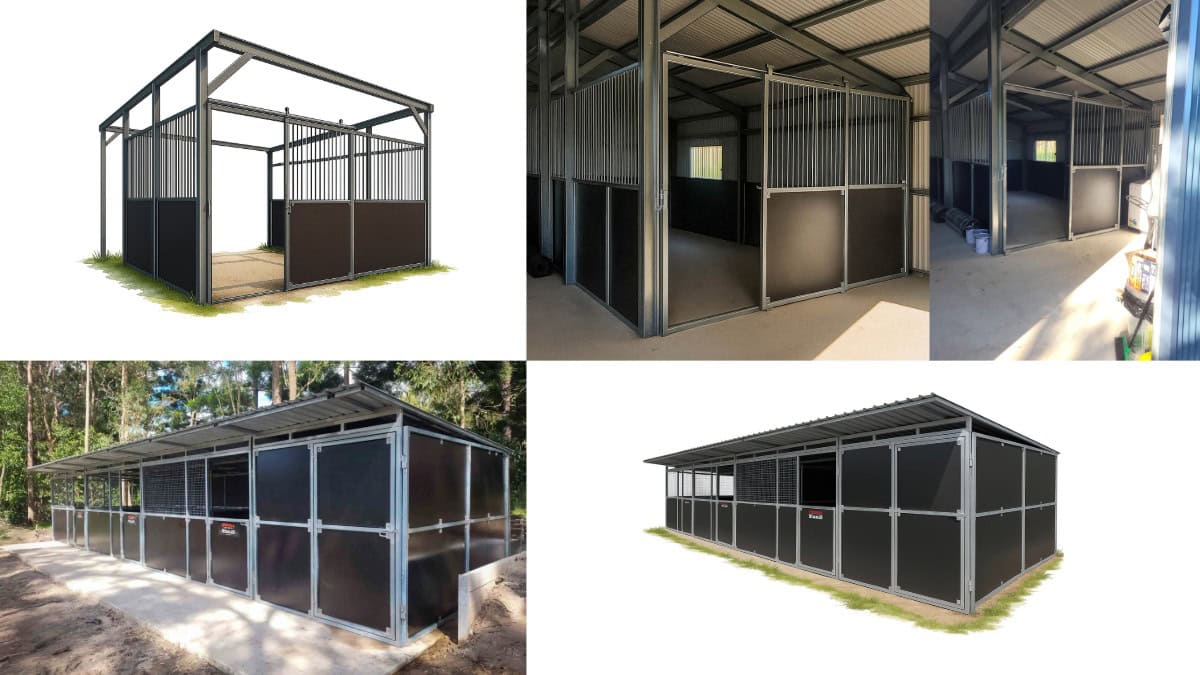
This works like a visual quote, it helps clients imagine the result and builds confidence in your capabilities.
Be transparent about it. Add a small note on your site like:
“Some images on this page have been AI-enhanced or reimagined from original project photos. Originals are available [here].”
That single line builds trust and makes you look innovative, not deceptive.
If you post regularly on social media or update your site often, you want visual consistency, same colours, same uniforms, same brand feel.
Tools like PhotoGPT or Seelab let you train a model of you (or your team, van, or product) so you can generate new images that still look recognisably yours.
For example, you could:
This is the AI equivalent of having your own in-house photographer who never gets tired.
Low-quality or pixelated images aren’t a lost cause. Tools like Topaz AI or Gigapixel AI can upscale and recover photos up to six times their original size without losing clarity. This is brilliant for older brands wanting to refresh their site but don’t have access to the original photo files.
You can also use these tools creatively, bring old workshop shots, printed brochures, or social images back to life..
Even if you eventually hire a professional photographer or videographer, use AI to work out exactly what you need first. Generate example shots of:
This becomes your visual storyboard, so the photographer knows exactly what to capture.
⭐ Pro Tip: Bring that AI storyboard to your videographer. It’ll save you hundreds, even thousands, because they’ll know exactly what to film and how to frame it. You’ll walk away with on-brand, high-quality footage that fits your website perfectly.
The trick is to go one step at a time, not dump everything into one prompt. AI tools do better when you give them small, clear tasks.
Here’s a real-world example of how you might approach AI Image Generation if you’re cleaning up a shot of your shed or workspace (the original has the blue border in image 2)
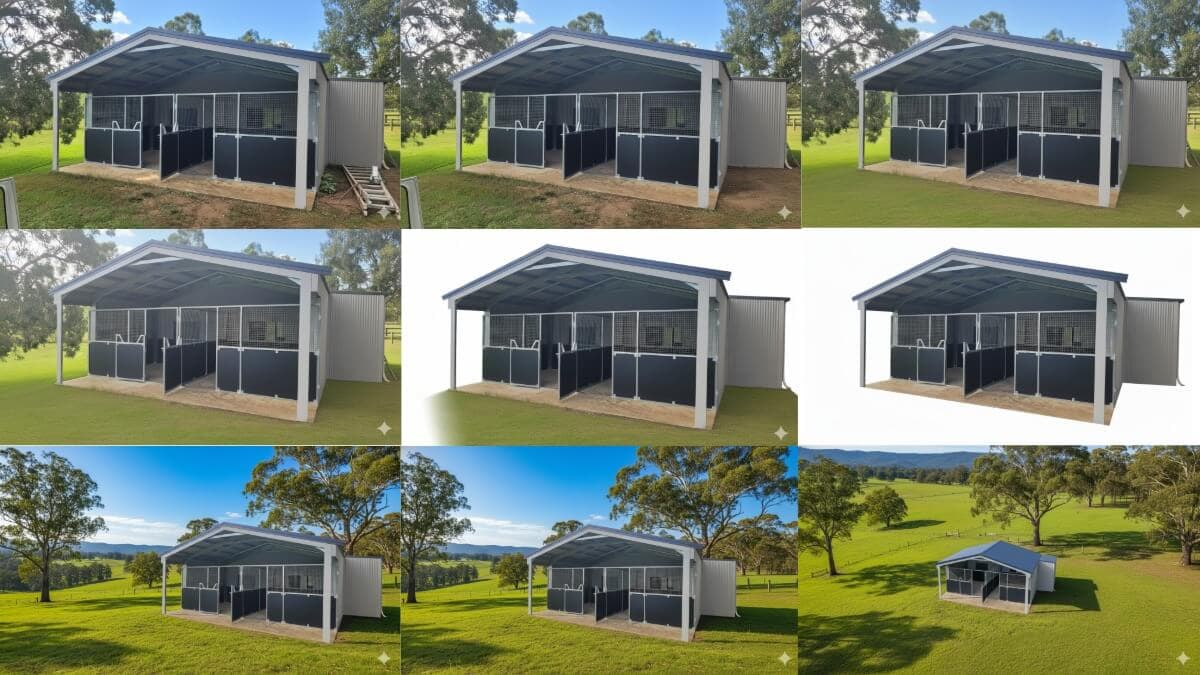
And for some more creative ways to use AI to help make your website images a little more interesting and visually impactful.
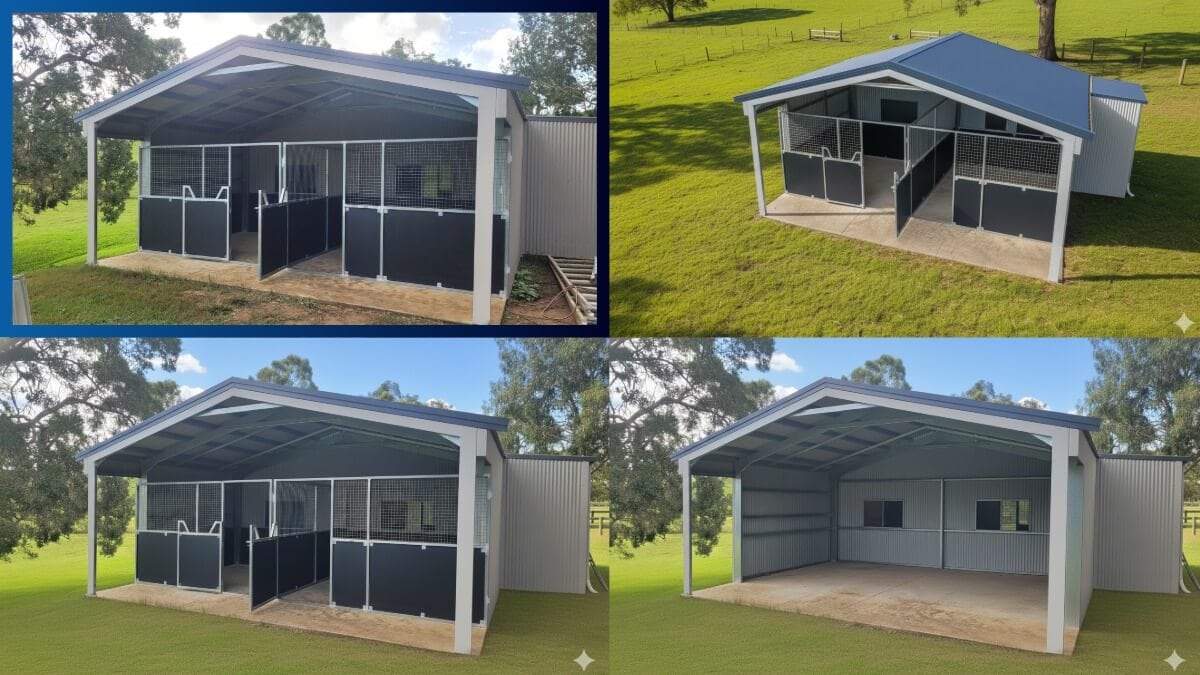
Each tiny edit brings the photo closer to polished, but it still looks like your place. Just cleaner, sharper, and more professional.
⭐ Pro Tip for perfect colour collection and lighting. Remove the entire foreground and background and ask for it to be replaced with something similar. You can use geographical promts like a “Regional Victorian farm property in winter” or “a suburban Ballarat brick home on a winters morning”
⭐If you are not quite getting the result you want and you have access to photoshop or Gimp, make as many alterations as you can get it 60-80% there, and have NanoBanana do the rest – you can even say “smooth out and fix” or “correct my photoshop edits, Try “enhance, upscale and improve clarity of…”.
If images are not looking realistic say “make this photorealistic” if it is changing too much of the design or layout say “do not change the design or layout of the…”.
AI-generated or not, your images still need to be optimised for web speed and SEO. When you download the image from AI, make an effort to rename the file to something meaningful like “Wendouree Interior Design Kitchen Close up of Panty” you can type it like that and when you upload it, it will save as wendouree-interior-design-kitchen-close-up-of-panty.jpg
Keep image files under 200KB wherever possible, and use:
Ideally use jpeg/jpg for photos and png for graphics or images with text
Add alt to describe what is in the image – “Landscaping team trimming hedges” is good. “Landscaping team trimming hedges in front garden of a Ballarat Property” is perfect!
Try alt descriptions that give a little more detail they are also used to enhance the experience of vision impaired customers “Electrician van with door open and tools visible parked outside Ballarat home.” Descriptive alt text improves search visibility and gives Google more context about your businesses local relevance.
AI is a tool, not a shortcut. Use it to enhance, not deceive. People can spot fake. But they also love seeing real local faces, familiar places, and honest, well-presented work. The best website photos make your business feel both professional and personal. When people see you, your van, your tools, your street, they trust faster. AI just helps you present that version of yourself more clearly.
AI image generation doesn’t replace a good photographer, it bridges the gap until you’re ready for one. It helps you build a consistent, professional-looking website with real local character, even if all you’ve got is a few decent phone photos and an hour to play with.
Keep it clean, keep it real, and let your images do the work of saying, “This is who we are, and yes, we’re local.”
If you have to use stock images, make them work hard for you. Don’t just grab the first photo that looks nice. Pick visuals that fit your brand’s tone, colour palette, and message. Make sure they’re cropped properly, optimised for speed, and add to the story your page is telling, not just filling a blank space. The right image should guide attention, build trust, and feel like it belongs. That’s where a good designer earns their keep, someone who knows how to make visuals work strategically for SEO, user engagement, and conversion, not just decoration.
If you’re building or refreshing your website on a budget, this 5-part series is your go-to toolkit for getting started. We’ve rounded up the best free tools and platforms that help you design like a pro without breaking the bank. Each article is packed with practical links and expert tips. Whether you’re a small business owner in or a creative launching your first project, these resources will help you launch with style, clarity, and confidence.
Discover more expert insights to the latest Web Design and SEO trends, these curated blog posts are designed to broaden your horizons and spark your imagination.




Hit submit and I’ll reach out by email or phone to help you get started. Your details stay private, see the Privacy Policy.