

Authorise Domain – Fixing Google Maps API Error: RefererNotAllowedMapError
If your website’s Google Maps isn’t loading and displays a RefererNotAllowedMapError, your domain isn’t authorised in Google Cloud Console. This guide walks you through authorising your domain, creating new API keys, and troubleshooting common issues like billing problems or plugin conflicts to get maps working correctly.
Table Of Contents
How to fix “Referer Not Allowed Map Error”
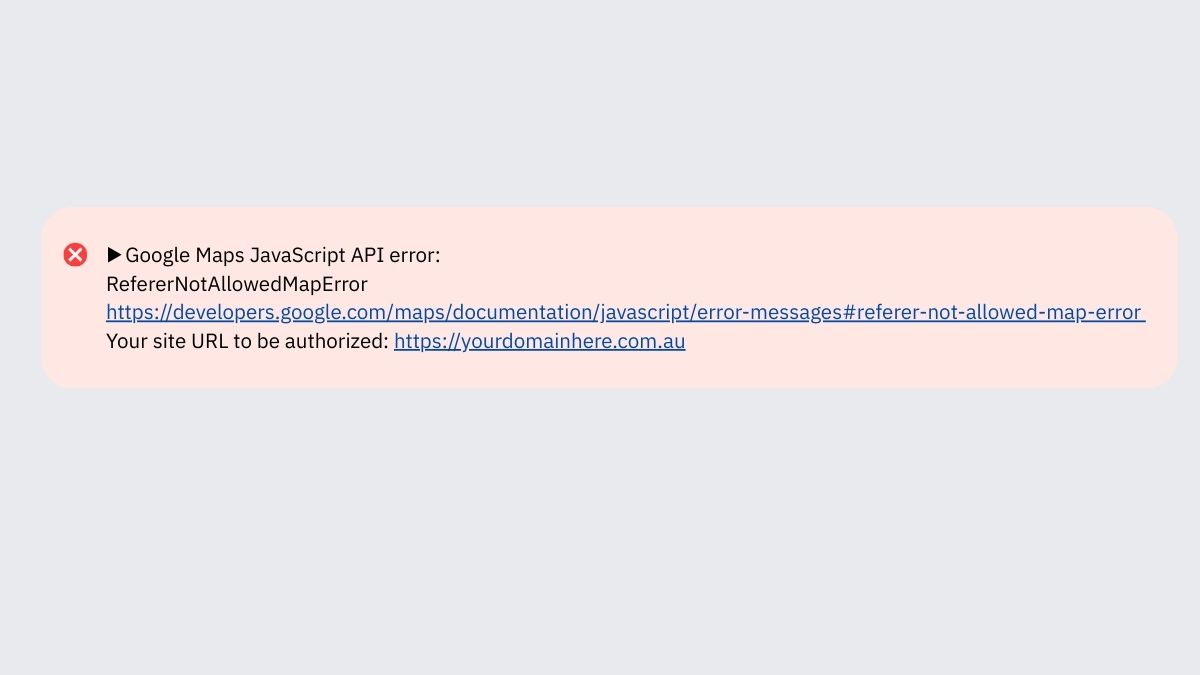
If you’re seeing the following error on your website map, It means your site’s URL is not listed as an authorised referrer in your Google Cloud Platform settings. This prevents the map from loading correctly.
Google Maps JavaScript API error: RefererNotAllowedMapError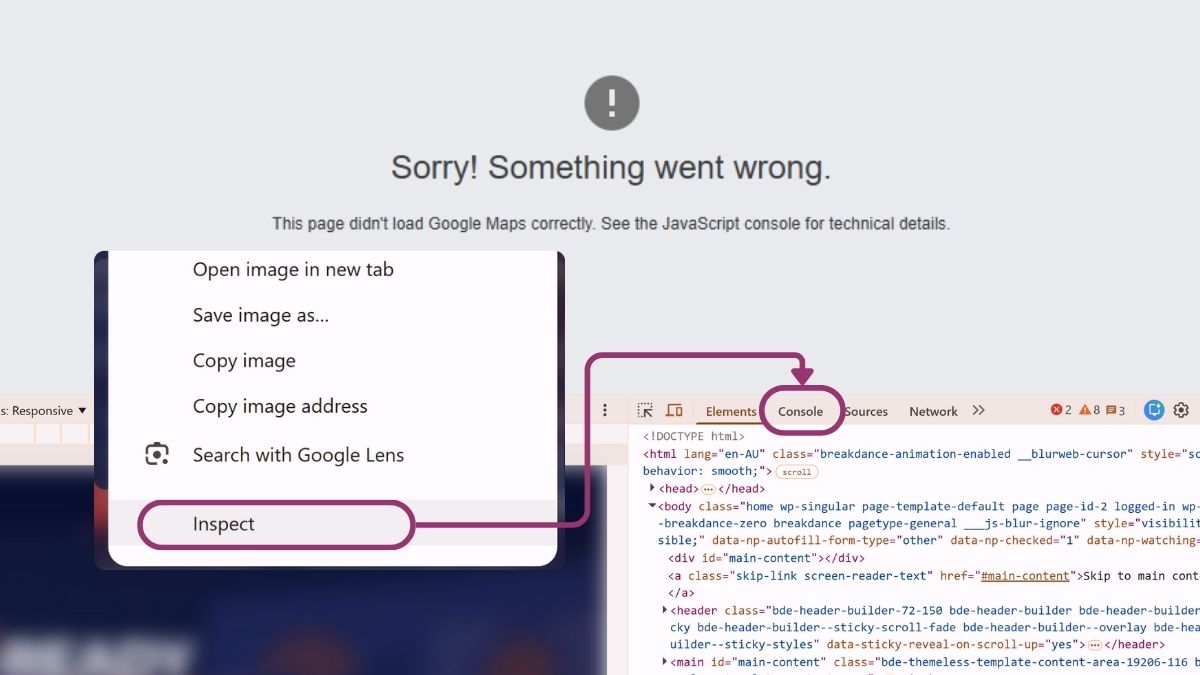
- Open Console in Dev Tools
- Rick Click on the page > Select Inspect
- Up the top of Chrome Dev Tools.
- Click on Console, (or the Red X on the right hand side of the page)
Step-by-Step Fix: Authorise your domain in the Google Cloud Console to resolve Maps Error
To fix this, you (or your developer) need to authorise your domain in the Google Cloud Console.
Step 1: Log into Google Cloud Console
Go to: https://console.cloud.google.com/
You must be logged in with the same Google account that manages your Maps API project.
*If you cant get access to this account The Quick Fix is to use a different Google Account, and create a new Maps API, and follow the next steps to authorise the domain. Then you would need to update the new API key on your website.
Step 2. Select the Correct Project
At the top of the page, click the dropdown to select the project linked to your Maps API key.
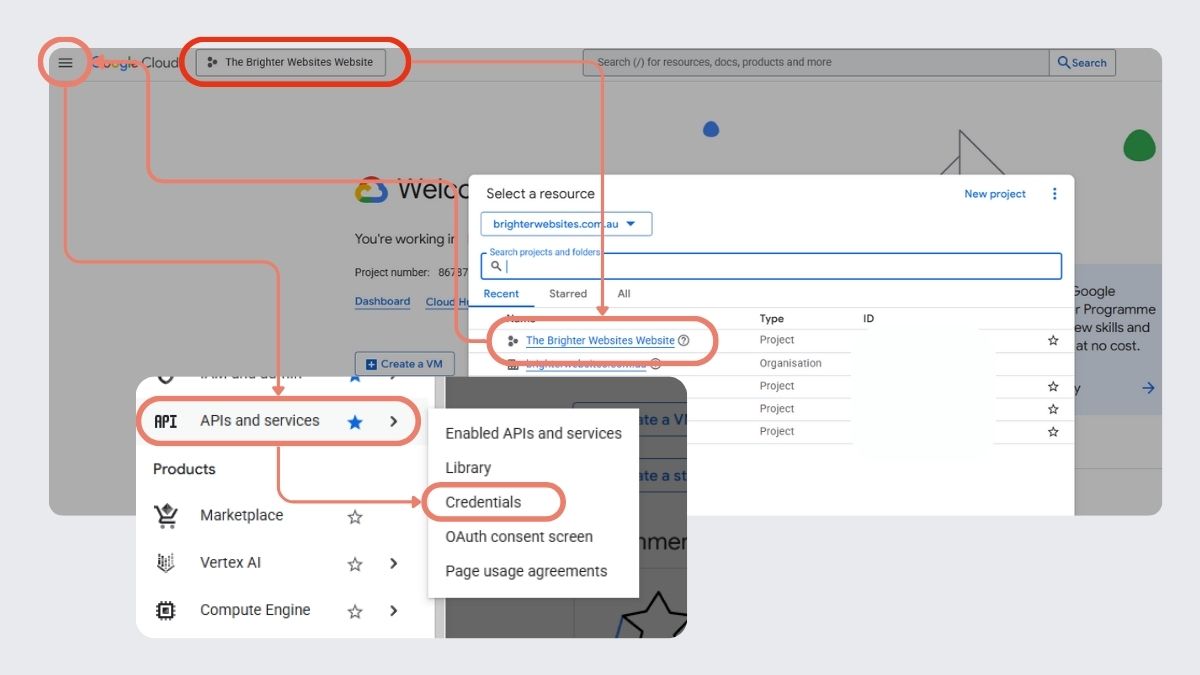
Step 3. Open API Credentials & Find your Key
- From the left-hand menu, go to APIs & Services > Credentials
- Find the API key you’re using on your website (the one mentioned in the error)
- The API key is mentioned in the error (highlighted in white and blue below)
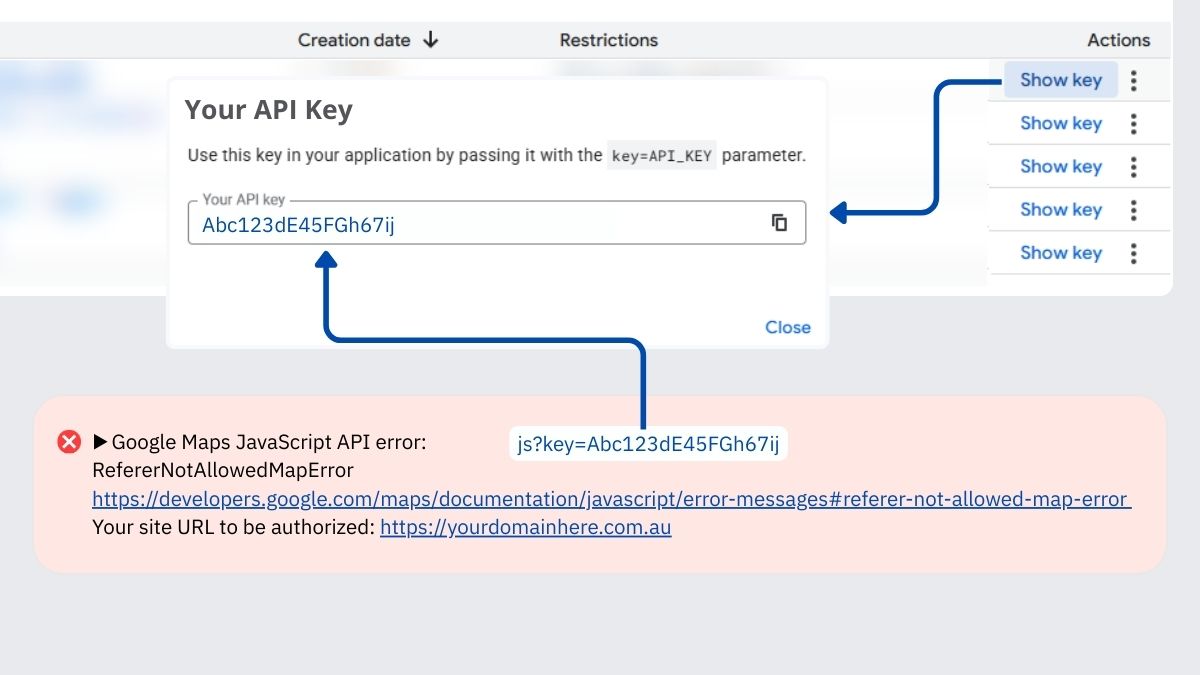
Step 4. Edit the API Key Restrictions and Add Your Website as an Authorised Referrer
- Click the pencil icon next to the key
- Under Application restrictions, make sure “HTTP referrers (websites)” is selected
- In the referrer list, add: *.
yourdomainname.org.au/*
Important: The *. at the start covers all subdomains, and https/http versions, while/*at the end ensures all subpages (like/contact/) are covered.

Step 5. Save Your Changes, Clear Cache & Test the Map
Click Save to apply the new settings.
Refresh your website (and clear your cache if needed) to see if the map loads correctly.
Maps Still Not Working even after setting correct referring domain in API Key?
Ensure You’re Using the Correct API Key
Double-check that your site is referencing the same key listed in your Google Cloud Console.
Check Billing Account – Billing Status
- Go to Billing in the Cloud Console
- Make sure a valid billing account is connected to your project
- There must be no outstanding charges or suspended billing – Maps won’t work without active billing
Try Using your Servers IP Instead of Referrer
If your setup is more complex (e.g. proxying requests), you can:
- Set the Application restriction to “IP addresses”
- Add your server IP address instead of the website referrer
Only use this if you know the map request is being made server-side (not common for basic sites).
Check Domain Authorisation (Branding & User Settings)
Some users have reported success by checking:
- Branding settings (e.g. OAuth consent screen > add domain to “Authorised domains”)
- User Type in the project is set to External if needed
Debug Test: Temporarily Disable API Restrictions (Troubleshooting Only)
If you’re not sure whether the Google Maps error is caused by referrer settings or an issue on your website (e.g. plugin conflict, broken embed code), you can temporarily disable API key restrictions to isolate the problem.
- Under Application Restrictions, select: None,
- Save changes Refresh your website map page (use an incognito window)
- If the map now loads, the issue is with referrer restrictions
- If the map still fails, the issue is likely on the website itself (e.g. theme, plugin, JavaScript conflict)
- Don’t Forget to Re-Enable Security – Re-select HTTP Referrers (websites) Add your domains and Save changes
Important Warning – Only do this for short-term testing.
Disabling restrictions means anyone who finds your key can use it, which could lead to unexpected usage charges on your Google Cloud account.
Do not leave your key unrestricted in a live or production environment.
How to Create a New Google Maps API Key (with Billing & Security)
This guide will help you generate a brand-new API key for embedding or using Google Maps on your website.
Step 1: Log into Google Cloud Console
Go to: https://console.cloud.google.com
Log in with your Google account.
Step 2: Create or Select a Project
- Click the project selector at the top
- Choose an existing project or click “New Project”
- Name it something like: Maps API for [Your Website Name]
- Click Create
Step 3: Enable Billing
If you haven’t already:
- Go to Billing in the left-hand menu
- Set up a billing account or attach an existing one
- Google Maps API includes $200/month free usage, which covers most small websites but you will still need to attach a credit card to the account
Step 4: Enable Required APIs
Go to APIs & Services > Library
Search for and enable each of the following:
- Maps JavaScript API
- Geocoding API (if using address lookups)
- Places API (optional, for autocomplete/address search)
- Click Enable for each.
Step 5: Create a New API Key
- Go to APIs & Services > Credentials
- Click + Create Credentials > API Key
- A key will be generated – copy and save it
Step 6: Secure Your API Key
- Click the pencil icon next to your new key and:
- Under Application Restrictions, select: HTTP referrers (websites)
- Add your domain(s)
- Click Save.
https://yourdomain.com/*
https://www.yourdomain.com/*

*.yourdomain.com/*

You can also add sub domains or staging domains (like https://staging.yourdomain.com/*) if needed.
Step 7: Add the Key to Your Website
Paste the key into your website’s map embed script, plugin, or settings. Example for raw HTML:
<script src="https://maps.googleapis.com/maps/api/js?key=YOUR_API_KEY&callback=initMap" async defer></script>

Replace YOUR_API_KEY with the actual key.
Breakdance Builder
- In your WordPress dashboard, go to
Breakdance > Settings > Integrations - Click the Google Maps tab
- Paste your API key into the “Google Maps API Key” field
- Click Save Settings
- To add a map, use the Map element in the Breakdance editor and configure the address or coordinates
Elementor (Free or Pro)
For Elementor Pro (uses built-in Google Maps widget):
- Go to
Elementor > Settings > Integrations - Scroll to Google Maps
- Paste your API key into the field provided
- Click Save Changes
- In the Elementor editor, drag the Google Maps widget to your page and set your desired location
For Elementor Free (uses HTML widget or plugin):
- Use an HTML widget and paste in the map embed code:
- (Optional) Use a plugin like WP Google Maps for better customisation if you’re not using Pro.
Divi Theme / Builder
- In your WordPress admin area, go to
Divi > Theme Options - Scroll to the General tab
- Find the field labeled Google API Key
- Paste your key and click Save Changes
- In the Divi Builder, use the Map module
- Add Map Pins/Markers and set addresses as needed
Tip: Divi may require both the Maps JavaScript API and Geocoding API to be enabled for full functionality (especially for address lookups).
Common Issues to Watch Out For
- Maps not loading? Use Developer Console to check for errors like:
RefererNotAllowedMapErrorApiNotActivatedMapErrorInvalidKeyMapError
- Always make sure:
- API key is correctly entered
- Correct APIs are enabled in Google Cloud
- Domain is authorised under HTTP referrers in API key settings
- Billing is enabled and active
How to Open the Developer Tools > Console
On Chrome, Edge, or Brave (most browsers):
- Right-click anywhere on your webpage
- Click “Inspect”
- Click the “Console” tab at the top
Or use the shortcut:
Windows/Linux: Ctrl + Shift + J
Mac: Cmd + Option + J
Copy or Screenshot the Error
If you’re not sure how to fix the error, take a screenshot or copy the full error message and share it with your developer or support contact.
Finishing Up
- Once you update your API key settings or billing, clear your browser cache or use Incognito mode to check again.
- Test the map on different devices and browsers
- Monitor usage via APIs & Services > Dashboard
Need Help Fixing Google Maps on your website?
If you’re unsure which key is in use or need help updating your credentials, or you just want maps to show correctly? Start by contact the web developer or the team that set up your Google Maps integration if you have no luck there, Id love to help – Contact me (Vanessa) from Brighter Websites – I can even set up some pretty cool custom map integrations too!