

Analytics
GA4 Setup
Connect your GA4 Measurement ID in SCOS and run event seeding so strategy-aware tracking starts collecting data.
Usage Guide
Doc Status: Draft or Notes only
Agency devs / future maintainers, Web Designers
Summary
GA4 setup in SCOS is two steps: enter your Measurement ID under Settings → SCOS → Analytics with the module enabled, then seed events so GA4 registers the full SCOS event set. Without seeding, low-traffic sites may wait weeks to see custom events in admin. After both steps, register custom dimensions and map conversions using the Custom Dimensions and Event Reference docs.
Table Of Contents
Step 1: Measurement ID in SCOS Analytics settings. Step 2: seed events — open the Event Seeding doc if GA4 shows empty custom events.
Step 1 — Add your Measurement ID
In your WordPress admin, go to Settings → SCOS → Analytics. Enter your GA4 Measurement ID in the field provided and save.
The Measurement ID format is G-XXXXXXXXXX. Make sure the Analytics module toggle is enabled — the module will not load if it is switched off.
Step 2 — Seed your events
Visit your site with ?seedEvents=true appended to any URL:
https://yoursite.com.au/?seedEvents=trueThis triggers the event seeder, which fires each tracked event once so GA4 registers them automatically. You only need to do this once per site — or again if you add new event classes in future.
Events appear in GA4 under Reports → Engagement → Events within a few minutes. Some events may take up to 24 hours to appear in standard reports but will show immediately in Realtime.
The seeder only fires for logged-in admins or when ?seedEvents=true is present in the URL. It does not affect live visitor data. Admin and editor sessions are excluded from all tracking automatically — your own site visits will never appear in your GA4 reports.
Step 3 — Set up Custom Dimensions (recommended)
The Analytics module sends content strategy context with every event — cluster, intent, maturity, service pathway, and more. To use this data in GA4 reports, the dimensions need to be registered once in your GA4 property.
This is a one-time setup in the GA4 admin interface and takes around five minutes.
Verifying it’s working
After setup, open GA4 and go to Reports → Realtime. Visit your site in a separate browser tab (logged out, or in an incognito window — admin sessions are excluded). You should see a page_view event appear within seconds.
Click a CTA or phone link on the site. The corresponding event should appear in Realtime within a few seconds.
Troubleshooting
No events appearing in Realtime
Check that the Measurement ID is entered correctly — it must start with G-. Confirm the Analytics module is toggled on in SCOS settings. Make sure you are testing in an incognito window or logged-out browser session, as admin tracking is suppressed by design.
Events appearing but no custom dimension data
Custom dimensions need to be registered in GA4 before they appear in reports. See the Custom Dimensions setup guide.
?seedEvents=true not triggering
You must be logged in as an admin for the seeder to fire. If you are logged in and it still does not trigger, check that the Analytics module is active and that no caching layer is stripping query parameters — temporarily bypass LiteSpeed cache for the test.
Bonus Step Track AI Traffic Referrers
AI tools like ChatGPT, Perplexity, and Gemini are changing how people discover websites. But for many business owners and marketers, there’s one big question:
How do I know if AI is actually sending traffic to my website?
Platforms like Google Analytics 4 (GA4) weren’t designed to track AI bots or their influence. But that doesn’t mean you’re flying blind. With a few custom tweaks, you can start tracking traffic driven by AI citations and summaries and make smarter decisions about your content strategy.
Why You Can’t Rely on GA4 Out of the Box
GA4 is a powerful tool, but it wasn’t built with AI-driven referrals in mind. Here’s why:
- AI bots don’t behave like real users. They don’t trigger standard events or sessions.
- Referrals from AI platforms are indirect. Chatbots don’t always link directly they describe or summarise, and users click through if curious.
- Default reports don’t separate AI domains. You’ll miss important insights unless you customise.
But with a little setup, you can track human clicks that come from AI platforms like chat.openai.com or perplexity.ai.
Setting Up AI referral Tracking in GA4
The best way to track AI referrals in GA4 is by creating a Custom Channel Group. This approach:
There are a couple of ways to do this but Creating a Custom Channel Group is tge most robust and recommended method, as it allows you to see this data as a separate channel in your standard GA4 reports on an ongoing basis. Plus it updates your standard reports automatically.
1 Create a Custom Channel Group in GA4
- Navigate to “Admin”: Click the “Admin” gear icon in the bottom-left corner of the GA4 interface.
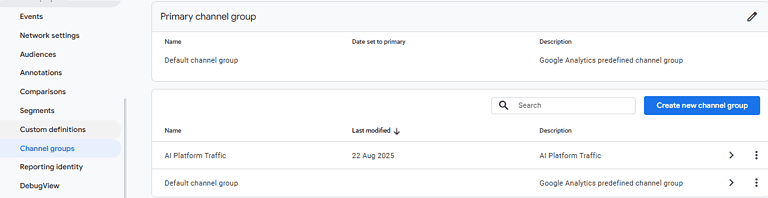
- Go to “Channel Groups”: In the “Data Display” column, select “Channel Groups.”
- Create a New Channel Group: Click “Create new channel group.” Give it a name like “AI Platform Traffic.”
2 Add a New Channel
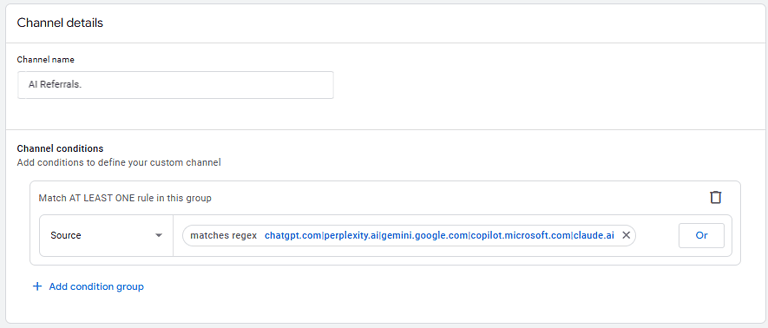
- Click “Add new channel” and give it a name like “AI Referrals.”
- Define the Rules: Set the conditions for this new channel.
- For “Dimension,” select “Source.”
- For “Match type,” select “matches regex.”
- For “Value,” enter your regex pattern for AI domains (e.g.,
chatgpt.com|perplexity.ai|gemini.google.com|copilot.microsoft.com|claude.ai). - Click “Save channel.”
3 Reorder the Channels
- Move “AI Referrals” above the “Referral” channel
- Save the Group: Click “Save group” to finalize your changes.
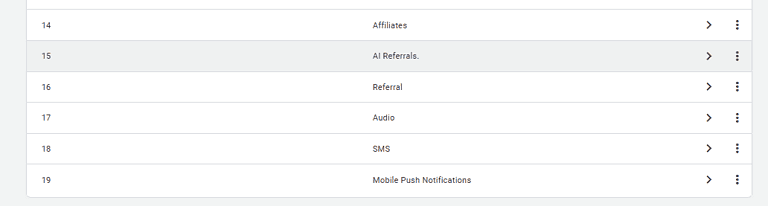
This is a crucial step. The channels are evaluated in a top-down waterfall. By default, AI referral traffic is lumped into the general “Referral” channel. You need to move your new “AI Referrals” channel above the “Referral” channel in the list. This ensures that when GA4 sees a chat.openai.com referral, it attributes it to your new, specific channel before it gets to the generic one.
Don’t forget to add New Chanel Group/Chanel to Traffic Acquisition reports
Once you have created the channel group, you can select it as the primary dimension in your Reports > Acquisition > Traffic Acquisition report. This allows you to see your “AI Referrals” as a distinct channel alongside “Organic Search,” “Direct,” and other traffic sources.
Spotting the Indirect Impact of AI
Not all AI-driven traffic comes through as a referral. Sometimes, the boost is more subtle.
Here’s how to spot it:
- Look for spikes in branded searches. If a chatbot mentions your brand, users may Google it directly.
- Monitor direct traffic to key pages. Especially blog posts or landing pages cited by AI tools.
- Compare timelines. If you see a citation from an AI tool, check if traffic increased shortly after.
While it’s not a perfect science, correlating branded traffic with AI exposure gives you powerful strategic insights.
Why This Matters for SEO and Strategy
Tracking AI-driven traffic helps you:
- Identify content that AI is surfacing (and double down on it)
- Measure visibility beyond search engines
- Justify content investments with data
- Stay ahead of competitors not yet monitoring this channel
As more users rely on AI tools for answers, the websites they cite and summarise will gain an edge. Tracking that influence is now essential.
Want to Contribute to SCOS?
SCOS is a Strategic Content Operating System - learn more or contact us on support@brighterwebsites.com.au.